How to Import Track Codes in PolyTrack
Complete guide on how to copy and import custom track codes in PolyTrack. Learn to load community-made maps in just a few simple steps.
How to Import Track Codes in PolyTrack
⏱️ Takes about a minute, start to finish.
Importing custom track codes in PolyTrack is simple and quick. Follow the three steps below and you'll be playing a community track in under a minute.
What You'll Learn:
- ✓ The 3-step import process (copy → paste → play)
- ✓ The handful of mistakes that cause most failed imports
- ✓ Troubleshooting the four common error types
- ✓ Platform-specific tips (Web vs. Desktop)
Step 1: Copy the Track Code
⏱️ Time: 5-10 seconds
-
Find a track you want to play on our website
- Browse by difficulty, category, or popularity
- Each track has a unique code (alphanumeric string, 50-500+ characters)
-
Click "COPY CODE" button
- Usually orange/blue, prominently displayed
- One-click operation (no manual selection needed)

- Verify confirmation: You'll see "COPIED!" message
- Appears for 2-3 seconds
- Code is now in your system clipboard

💡 Pro Tip: Don't copy anything else after this step! Clipboard will be overwritten.
⚠️ Common Mistake: Manually selecting code text instead of using the button → often misses characters → import fails. Always use the button!
Step 2: Open PolyTrack
⏱️ Time: 10-15 seconds
-
Launch PolyTrack in your browser
- Official game: kodub.itch.io/polytrack (or use our Play page)
- Works on Chrome, Firefox, Safari, Edge
- Desktop app also supported (same process)
-
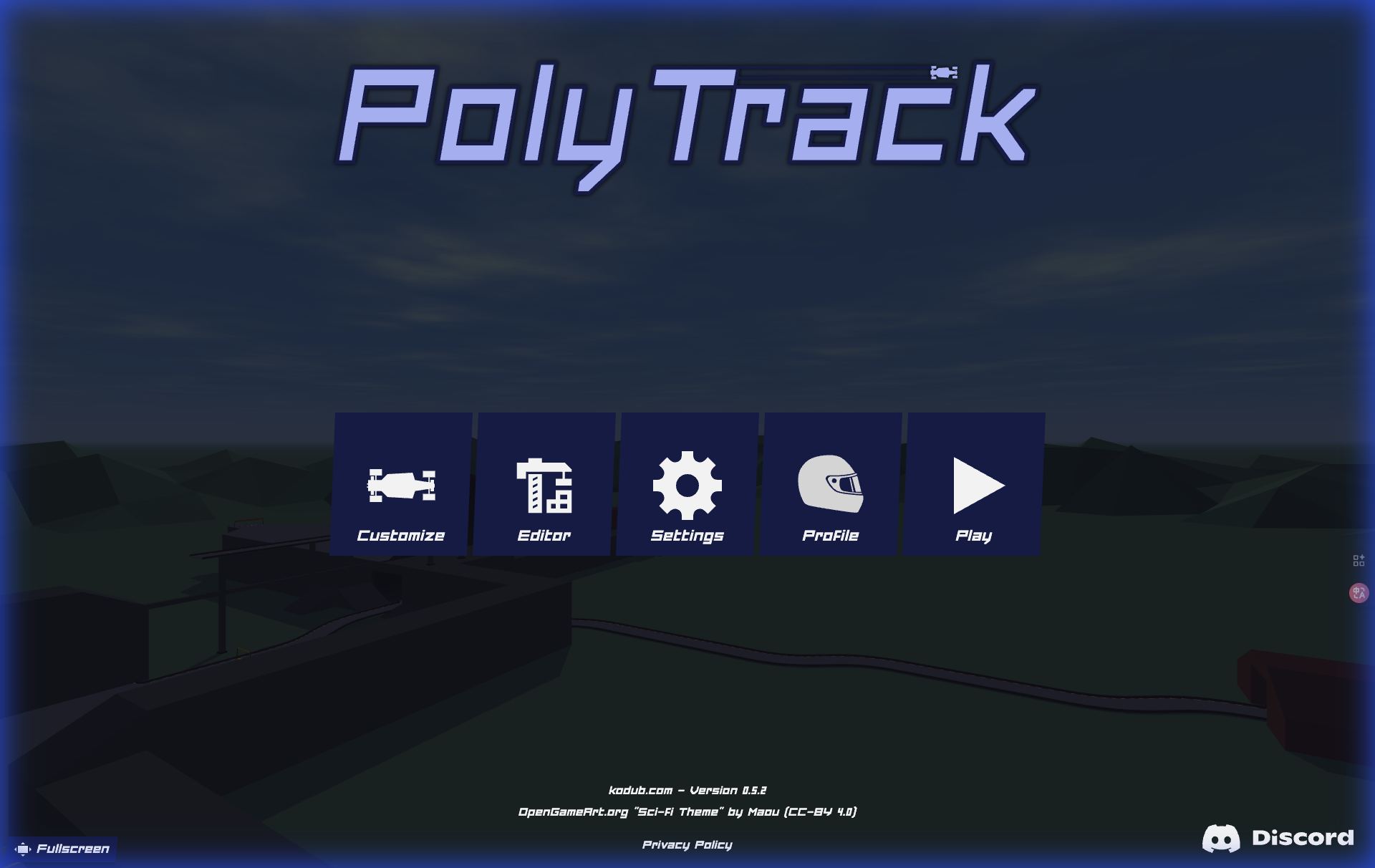
From main screen, navigate to "Track Editor"
- Usually center menu option or top-right icon
- May say "Editor", "Create", or show pencil/wrench icon
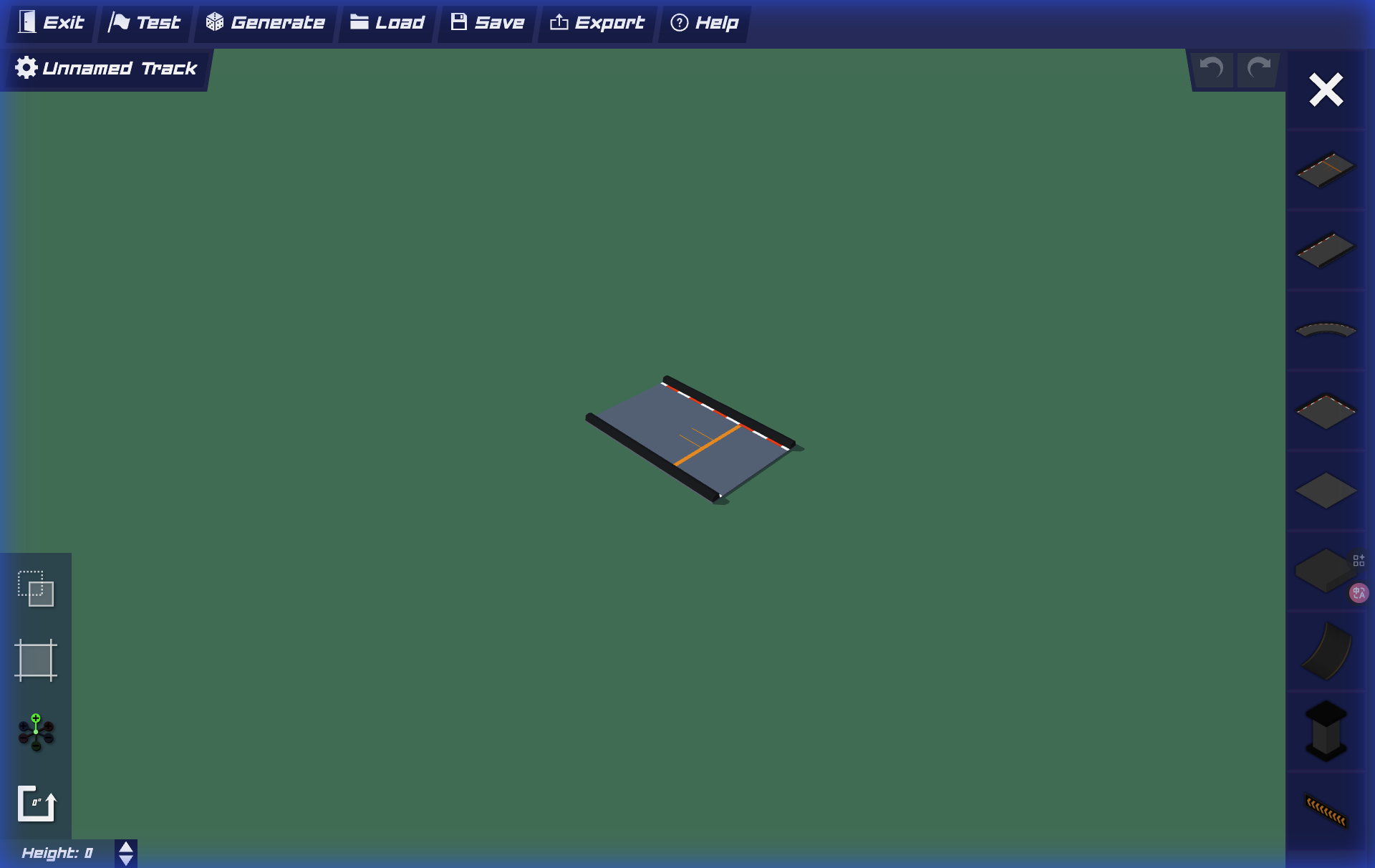
- Locate "Load" button in editor toolbar
- Top toolbar (usually left or center)
- Icon: folder or upload symbol
- May say "Load", "Import", or "Open"
⚠️ Common Mistake: Going to "Play" mode instead of "Editor" → can't import. You must be in Track Editor!
Step 3: Paste and Play
⏱️ Time: 10-15 seconds
-
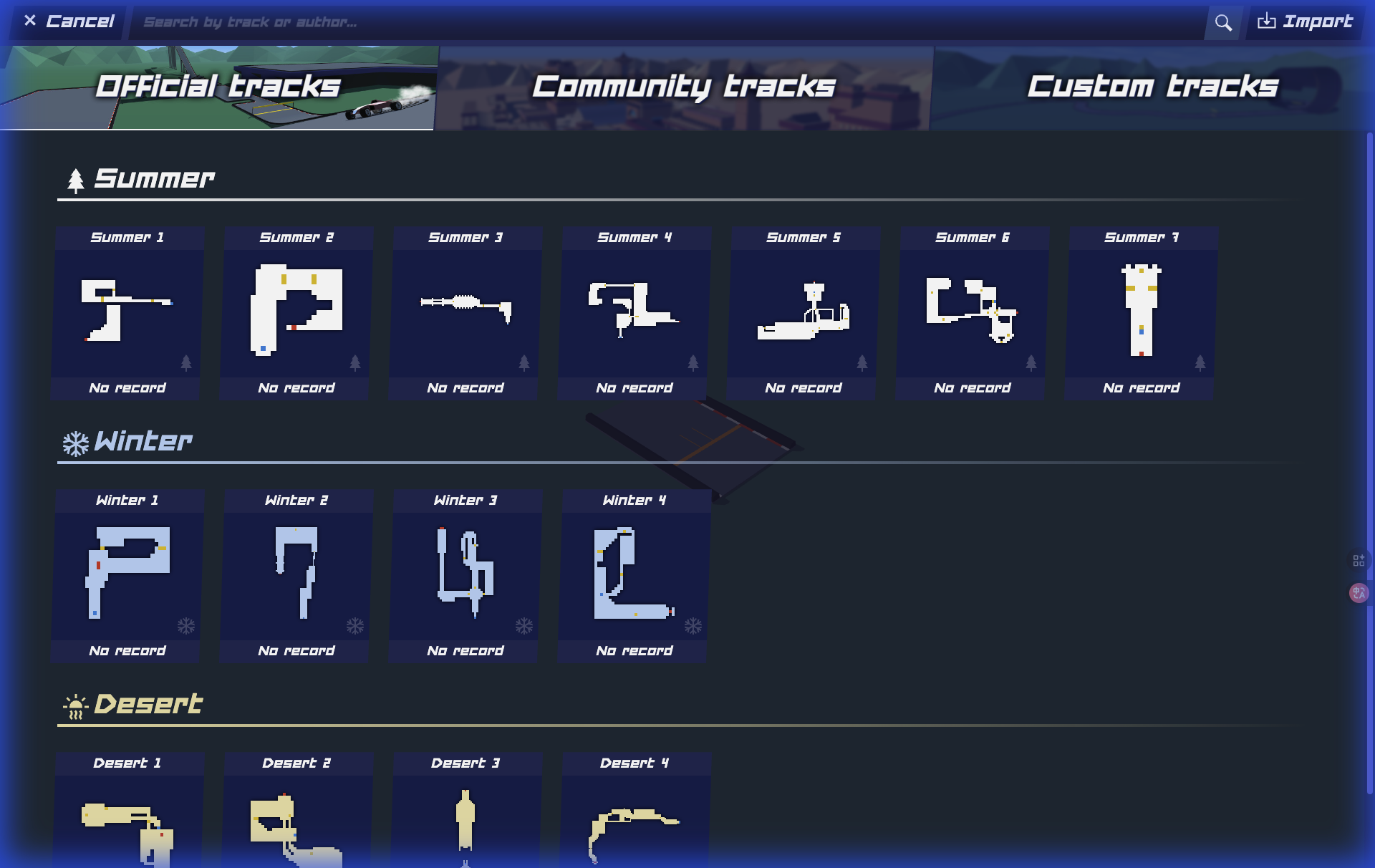
Click "Load" button → Opens import dialog
- Shows options: "Official Levels" / "Import Code"
- May have tabs or text input field
-
Paste the code into import field
- Windows/Linux: Ctrl+V
- Mac: Cmd+V
- Mobile: Long-press → "Paste"
-
Click "Load" or "Import"
- Track loads into editor (2-5 seconds)
- You'll see the track layout appear
-
Press "Test" or "Play" to start!
- Usually green play button or "Test Track" option
- Spawns you at track start
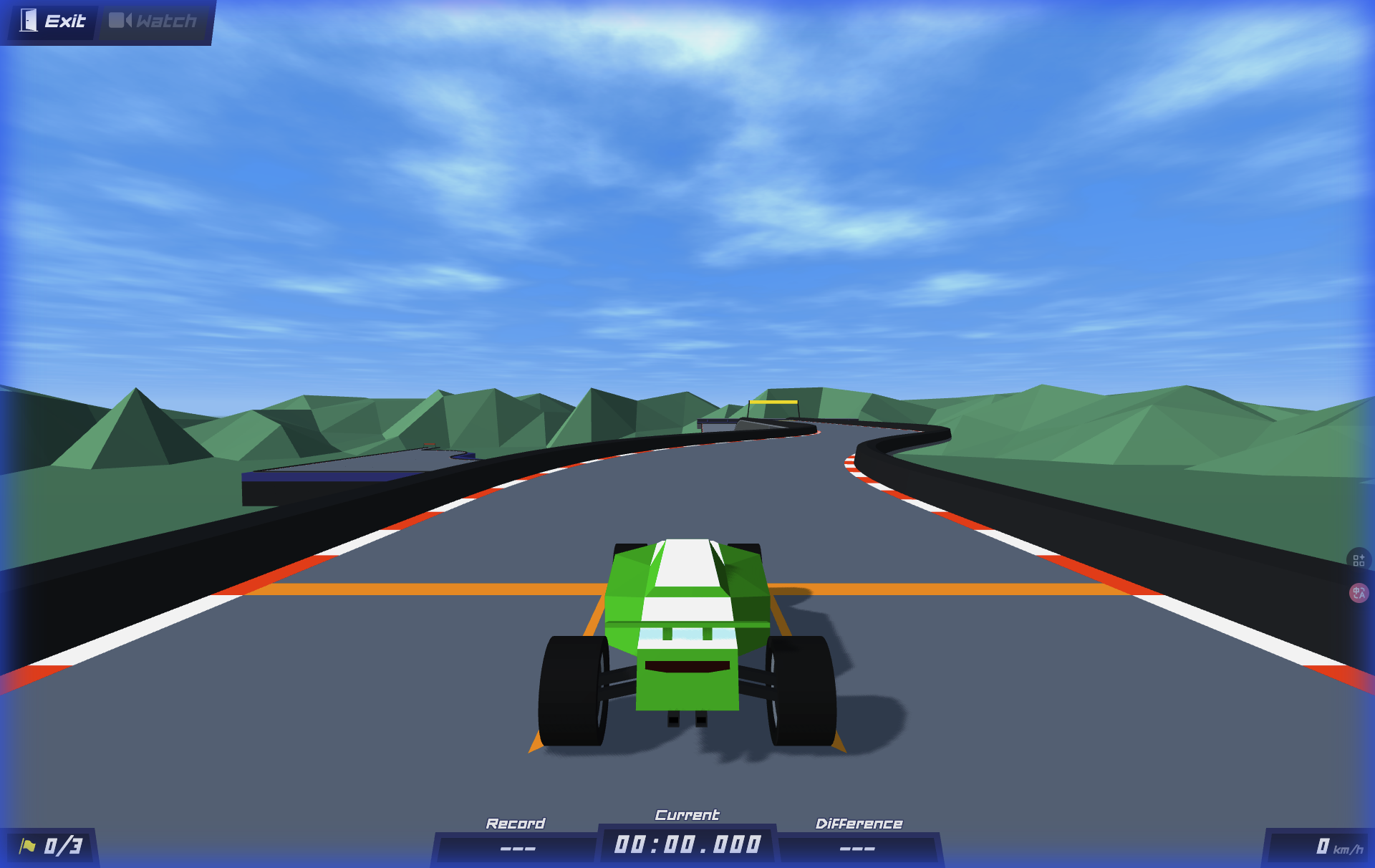
✅ Success! You're now racing on a community track!
⚠️ Common Mistake: Pasting in the wrong field (e.g., the search box) → does nothing. Make sure you're in the Import Code field specifically.
Tips for Best Experience
- ✅ Copy entire code - Some codes are 500+ characters. Button ensures completeness.
- ✅ Paste immediately - Don't browse other sites after copying (clipboard overwrites)
- ✅ Update game - Tracks may use new features. Refresh PolyTrack if >1 week old
- ✅ Test drive first - Before sharing imported track, play it to ensure proper load
Common Mistakes & Fixes
Mistake #1: Code truncated ❌ Manually selected text → missed the start/end ✅ Fix: Always use the "COPY CODE" button
Mistake #2: Wrong game mode ❌ Tried importing in "Play" mode ✅ Fix: Must be in "Track Editor" → "Load"
Mistake #3: Clipboard overwritten ❌ Copied the code, then copied something else ✅ Fix: Paste immediately after copying
Troubleshooting (Detailed)
Problem: Code won't paste (Error type: INPUT)
Symptoms: Nothing happens when pressing Ctrl+V Likely causes (most common first):
- Cursor isn't in the input field (no blinking caret)
- Clipboard is actually empty (the copy didn't register)
- Browser is blocking clipboard access (permission prompt)
- A keyboard-shortcut conflict is swallowing the paste
Solutions (try in order):
- Click directly in import field → ensure cursor blinks → retry paste
- Re-copy code → watch for "COPIED!" confirmation → paste again
- Right-click → "Paste" instead of keyboard shortcut
- Check browser clipboard permissions → Settings → Site Permissions → allow clipboard
- Try different browser (Chrome usually most compatible)
Problem: Track not loading (Error type: PROCESSING)
Symptoms: Spinning wheel forever, or "Failed to load" error Likely causes (most common first):
- Code is corrupted or incomplete (partial copy)
- Game version mismatch with the track
- Track uses removed or beta-only features
- Browser is low on memory (too many tabs open)
Solutions:
- Refresh PolyTrack page → clear cache → retry import
- Re-copy code from original source → ensure fresh copy
- Close other tabs → reduce browser memory usage → retry
- Check track date → tracks >6 months old may need game update
- Try Desktop app (if web version fails) or vice versa
- Report broken track → to PolyTrackCodes.com if persistent
Advanced: Check browser console (F12) for error messages → share with community
Problem: Track looks different than expected (Error type: VISUAL)
Symptoms: Wrong colors, missing elements, weird physics Likely causes (most common first):
- Version-specific features (old track on new game, or vice versa)
- A difference in your graphics settings
- Track was designed for a specific theme or mode
Solutions:
- Check game version → some tracks specify "v1.3+" etc in description
- Adjust graphics settings → High/Medium/Low may show differently
- Read track notes → creator may mention visual quirks
- Play anyway → physics usually work even if visuals differ
Not a bug: Track creators have different styles. Variation is normal!
Problem: Performance issues (Error type: LAG)
Symptoms: Stuttering, low FPS, freezing Likely causes (most common first):
- Track is extremely complex (very high piece count)
- Browser is overloaded with other tabs/apps
- Low-end device struggling with the render load
Solutions:
- Lower graphics settings → reduce visual quality for performance
- Close other tabs/apps → free up RAM
- Try Desktop app → usually better performance than browser
- Skip this track → some tracks are optimization nightmares (not your fault!)
Frequently Asked Questions
Do I need an account to import a track code? No. Importing is entirely local to the game — you copy a code here, paste it into the Track Editor, and play. No sign-up on either side.
Why does the import fail even though I copied the code? The usual culprit is a partial copy from manually selecting the text. Use the "COPY CODE" button so the whole string (sometimes 500+ characters) is captured, then paste it immediately before the clipboard gets overwritten.
Which browser works best? Any modern browser (Chrome, Firefox, Edge, Safari) works. If clipboard pasting misbehaves, Chrome tends to be the most forgiving, and the desktop build avoids browser clipboard restrictions entirely.
A track imported but looks or drives differently — is it broken? Usually not. Differences in game version, graphics settings, or a creator's intended theme can change the look without affecting playability. If a code genuinely won't load after a clean re-copy, contact us and we'll re-verify it.
Now you're ready to explore our library of 100+ custom PolyTrack maps! Browse our collection and find your next challenge.
Next Steps:
- View Top 10 Must-Play Tracks - Start here!
- Browse by Difficulty - Find your level
- Learn to Create Tracks - Make your own!