How to Play PolyTrack on Chromebook, iPad & Mobile in 2026
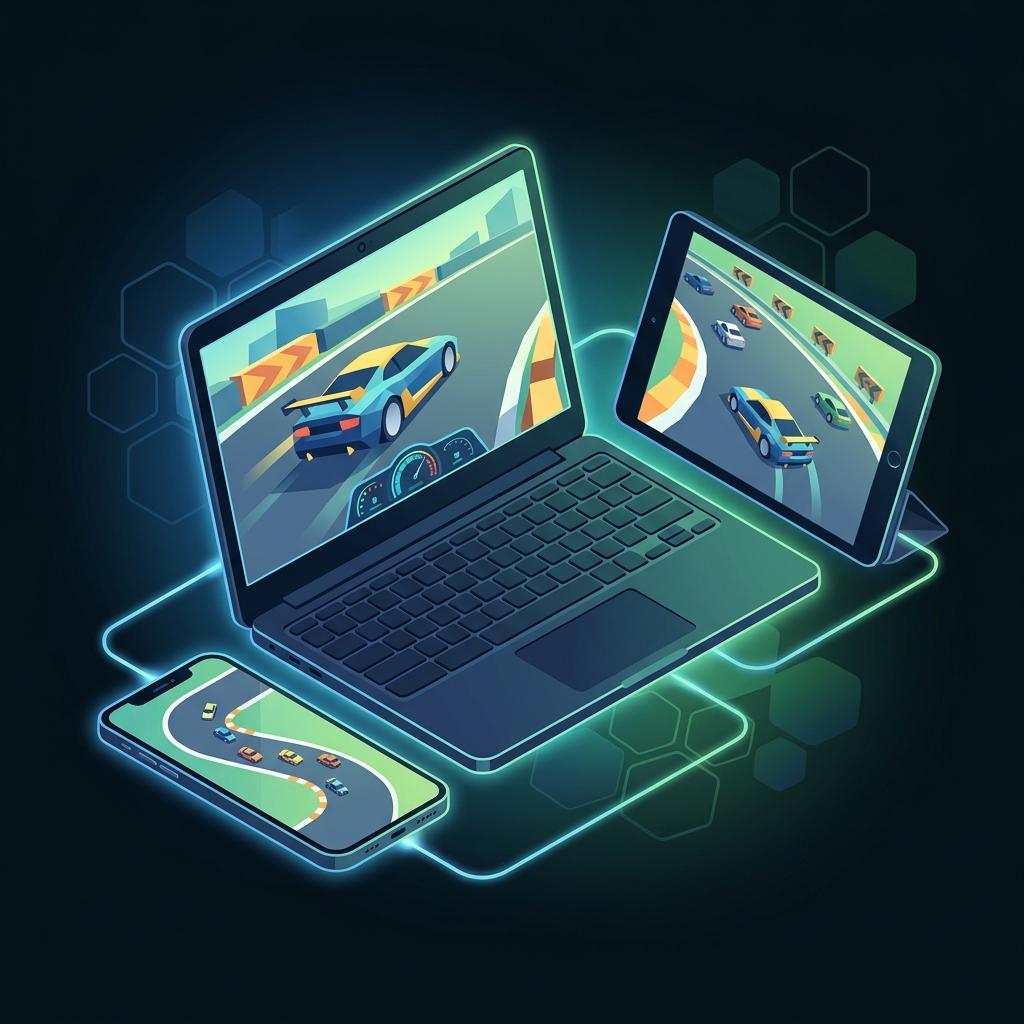
PolyTrack runs entirely in the browser, which means it works on far more devices than most people realize. You do not need a gaming PC, a Steam account, or any download. If your device has a modern web browser with WebGL support, you can race.
This guide covers every platform — from school Chromebooks to iPads to Android phones — with specific setup instructions, performance tips, and fixes for common issues.
Platform Compatibility Matrix
Before diving into setup, here is the full compatibility picture:
| Platform | Browser | Status | Performance | Controls |
|---|---|---|---|---|
| Windows PC | Chrome / Edge / Firefox | ✅ Full Support | Excellent | Keyboard |
| macOS | Chrome / Safari / Edge | ✅ Full Support | Excellent | Keyboard |
| Chromebook | Chrome | ✅ Full Support | Good to Great | Keyboard |
| iPad | Safari / Chrome | ✅ Playable | Good | External Keyboard Recommended |
| Android Tablet | Chrome / Edge | ✅ Playable | Good | External Keyboard Recommended |
| iPhone | Safari | ⚠️ Limited | Moderate | Touch Only (Difficult) |
| Android Phone | Chrome | ⚠️ Limited | Moderate | Touch Only (Difficult) |
| Linux | Chrome / Firefox | ✅ Full Support | Excellent | Keyboard |
The Bottom Line: If you have a physical keyboard attached to your device, PolyTrack runs well on virtually any modern platform. Without a keyboard, the game is technically playable but significantly harder to control.
Chromebook: Full Setup Guide
Chromebooks are one of the best non-PC platforms for PolyTrack. The Chrome browser runs the game natively and most modern Chromebooks have enough GPU power for smooth gameplay.
Step 1: Check Your Chrome Version
PolyTrack requires Chrome 90 or later. To check:
- Open Chrome
- Type
chrome://versionin the address bar - Confirm your version is 90+
Most school-managed Chromebooks automatically update, so this is rarely an issue.
Step 2: Enable Hardware Acceleration
This is the single most important performance setting:
- Open Chrome Settings (three dots → Settings)
- Search for "hardware acceleration"
- Toggle Use hardware acceleration when available to ON
- Restart Chrome
Without hardware acceleration, PolyTrack will run on CPU-only rendering, which causes significant lag and frame drops.
Step 3: Navigate to PolyTrack
Go to kodub.itch.io/polytrack — this is the official game page. Click "Run Game" and wait for the WebGL context to load.
Step 4: Optimize Performance
If you experience lag:
- Close other tabs. Each open tab consumes RAM. On a Chromebook with 4GB RAM, PolyTrack should ideally be the only active tab.
- Close Android apps. If your Chromebook runs Android apps, close them — they compete for GPU resources.
- Lower the game resolution. In PolyTrack's settings, reduce the render resolution to 75% or 50%.
- Disable extensions. Ad blockers and other extensions that inject content into pages can interfere with WebGL rendering.
Chromebook-Specific Controls
PolyTrack uses standard keyboard controls that work identically on Chromebooks:
| Action | Keys |
|---|---|
| Accelerate | W or Up Arrow |
| Brake/Reverse | S or Down Arrow |
| Steer Left | A or Left Arrow |
| Steer Right | D or Right Arrow |
| Drift/Handbrake | Space |
| Reset | R |
Trackpad Note: The Chromebook trackpad works for camera control in the editor, but is not needed for racing. All racing controls are keyboard-only.
iPad & Android Tablet Setup
Tablets offer a larger screen than phones and can provide a surprisingly good PolyTrack experience — especially with an external keyboard.
Recommended Setup
The ideal tablet setup:
- iPad with Magic Keyboard or Android tablet with Bluetooth keyboard
- Safari (iPad) or Chrome (Android) as the browser
- Landscape orientation locked
Step-by-Step
- Open Safari (iPad) or Chrome (Android tablet)
- Navigate to kodub.itch.io/polytrack
- Tap "Run Game"
- If prompted, allow the page to go fullscreen — this prevents accidental swipe-away gestures
- Connect your Bluetooth keyboard
- Start racing with standard WASD controls
Touch Controls (No Keyboard)
Without a keyboard, PolyTrack responds to on-screen touch in a limited way. The game was not designed for touch input, so expect:
- Steering by tapping left/right sides of the screen
- Acceleration via on-screen prompts (if available in the version)
- Significantly reduced precision compared to keyboard input
For serious play on a tablet, an external keyboard is strongly recommended. Budget Bluetooth keyboards start under $20 and transform the experience.
iPad-Specific Issues
- Safari Tab Cycling: Safari may unload the PolyTrack tab if you switch to another app. Avoid multitasking during gameplay.
- Low Power Mode: Disable Low Power Mode — it throttles GPU performance and causes frame drops.
- iPadOS 16+: Required for reliable WebGL 2.0 support. Older iPads on iPadOS 15 may experience rendering glitches.
Mobile Phones: What to Expect
Let's be honest: playing PolyTrack on a phone is possible but not ideal. Here is the reality:
What Works
- The game loads and renders correctly on modern phones (iPhone 12+, mid-range Android from 2022+)
- You can browse tracks, view replays, and explore the editor
- Basic driving is technically possible via touch
What Doesn't Work Well
- Precision steering is extremely difficult without a keyboard. PolyTrack's physics require frame-precise inputs that touch controls cannot reliably deliver.
- Screen size makes it hard to see upcoming obstacles, especially on tracks with elevation changes or tunnels.
- Battery drain is significant — WebGL rendering at 60fps consumes power rapidly.
Phone Performance Tips
- Close all background apps
- Set screen brightness to 50% to reduce thermal throttling
- Use Chrome, not the default browser — Chrome's WebGL implementation is the most optimized
- Play in landscape mode only
- Consider a phone clip + Bluetooth keyboard setup if you are serious about mobile play
Troubleshooting Common Issues
Black Screen / Game Won't Load
Cause: WebGL is disabled or unsupported.
Fix:
- Go to
chrome://flagsin Chrome - Search for "WebGL"
- Ensure "WebGL 2.0" is set to Enabled
- Restart Chrome
On Chromebooks managed by schools, WebGL may be disabled by the admin. In this case, ask your IT administrator to enable it, or try an alternative browser like Firefox if installed.
Lag / Low Frame Rate
Cause: Insufficient GPU resources.
Fix checklist:
- Hardware acceleration enabled?
- Other tabs closed?
- In-game resolution reduced?
- Device plugged into power (prevents thermal throttling)?
- Browser cache cleared recently?
Controls Not Responding
Cause: The game window has lost focus.
Fix: Click directly on the game canvas. On tablets, tap the game area to ensure keyboard input is directed to the PolyTrack window rather than the browser address bar.
Audio Not Working
Cause: Most browsers require a user interaction before playing audio.
Fix: Click anywhere in the game before expecting sound. Some Chromebook audio policies also mute content by default — check the tab's audio indicator (speaker icon in the tab).
School and Work Networks: Accessing PolyTrack
Many school networks block gaming sites. If kodub.itch.io is blocked:
- Check for mirror sites: PolyTrack is hosted on multiple platforms including CrazyGames and other browser gaming portals. Search for "PolyTrack unblocked" to find accessible mirrors.
- Use our guide: Check out our dedicated PolyTrack Unblocked Guide for current working links and methods.
Important: Always respect your school or workplace internet policies. If gaming is not allowed on the network, wait until you are on a personal connection.
Best Devices for PolyTrack in 2026
If you are specifically looking for a device to play PolyTrack and similar browser games, here are the best options by budget:
| Budget | Device | Why |
|---|---|---|
| Under $200 | Used Chromebook (2021+) | Full keyboard, Chrome built-in, lightweight |
| $200-400 | Lenovo Chromebook Duet or iPad 10th Gen + keyboard | Portable, good screen, decent GPU |
| $400-600 | iPad Air + Magic Keyboard | Premium tablet experience, great performance |
| $600+ | Any Windows laptop | Full PC experience, no compromises |
Summary
PolyTrack's browser-based design means you can race on almost anything with a screen and a modern browser. The key requirements are:
- Chrome 90+ (or Safari 14+, Firefox 88+, Edge 90+)
- Hardware acceleration enabled
- A physical keyboard for competitive play
- Close other tabs for best performance
Whether you are on a school Chromebook during lunch break or on an iPad on the couch, PolyTrack is ready when you are. Browse our track library to find your next challenge, or start with our beginner-friendly tracks if you are new to the game.