PolyTrack Controls & Keyboard Shortcuts: The Complete 2026 Cheatsheet
Whether you are loading PolyTrack for the first time or have 500 hours in the editor, this page covers every control input in the game. Bookmark it — you will come back.
Racing Controls
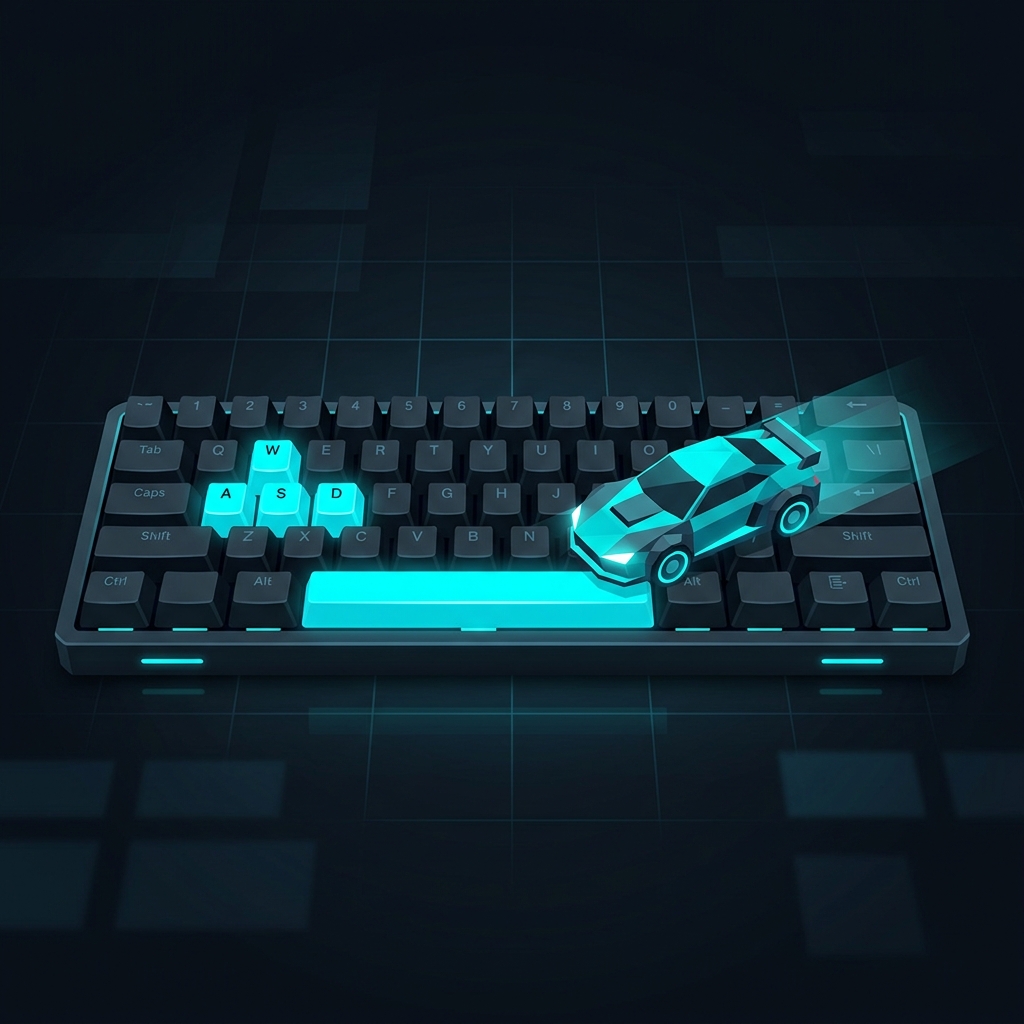
These are the core driving inputs. Both WASD and arrow key schemes work identically.
| Action | Primary Key | Alternative |
|---|---|---|
| Accelerate | W | Up Arrow |
| Brake / Reverse | S | Down Arrow |
| Steer Left | A | Left Arrow |
| Steer Right | D | Right Arrow |
| Drift / Handbrake | Space | — |
| Reset to Checkpoint | R | — |
| Reset to Start | Shift + R | — |
| Pause | Escape | P |
Pro Tips for Racing Inputs
Tap-Steering vs. Holding: Holding a turn key at high speed causes over-rotation and speed scrubbing. For tight corners, use rapid taps (A-A-A or D-D-D) to make micro-adjustments. This keeps your car closer to the intended line and preserves more speed through corners.
Drift Entry: Press Space simultaneously with your turn key (Space + A or Space + D) for a controlled drift entry. Releasing Space mid-drift while continuing to hold the turn key "grips up" your rear tires and shoots you forward — this is the single most important technique for competitive times.
The Smart Reset: Press R the instant you know a run is compromised. Do not attempt to recover from a bad landing or wall scrape — the time you spend recovering is almost always more than the time you lose by resetting. Watch any world record ghost: they reset aggressively and often.
Air Control
When airborne, additional controls become available:
| Action | Key |
|---|---|
| Pitch Nose Down | W or Up Arrow |
| Pitch Nose Up | S or Down Arrow |
| Roll Left | A or Left Arrow |
| Roll Right | D or Right Arrow |
Critical Technique: Before landing from any jump, use W/S to match your car's pitch angle to the landing surface. A perfectly flush landing (all four tires hitting simultaneously) preserves nearly 100% of your speed. A nose-first or tail-first landing can cost 30-50% of your momentum.
For a deep dive into air control physics, read our Air Control Masterclass.
Track Editor Controls
The editor has its own extensive set of shortcuts. Mastering these dramatically speeds up track creation.
Camera Controls
| Action | Input |
|---|---|
| Orbit Camera | Right-click + drag |
| Pan Camera | Middle-click + drag |
| Zoom In/Out | Scroll wheel |
| Reset Camera | Home |
| Camera Calibrate | F3 |
Block Placement
| Action | Input |
|---|---|
| Place Block | Left-click |
| Delete Block | Right-click on block / Delete key |
| Rotate Block (Y-axis) | Q / E |
| Rotate Block (X-axis) | R / F (in some modes) |
| Cycle Block Variants | Tab |
| Copy Selection | Ctrl + C |
| Paste Selection | Ctrl + V |
| Cut Selection | Ctrl + X |
| Undo | Ctrl + Z |
| Redo | Ctrl + Shift + Z |
| Select Multiple | Shift + click |
| Select All | Ctrl + A |
Editor Navigation
| Action | Input |
|---|---|
| Toggle Grid Snap | G |
| Test Track | Enter |
| Exit Test Mode | Escape |
| Open Block Palette | Tab (in placement mode) |
| Save Track | Ctrl + S |
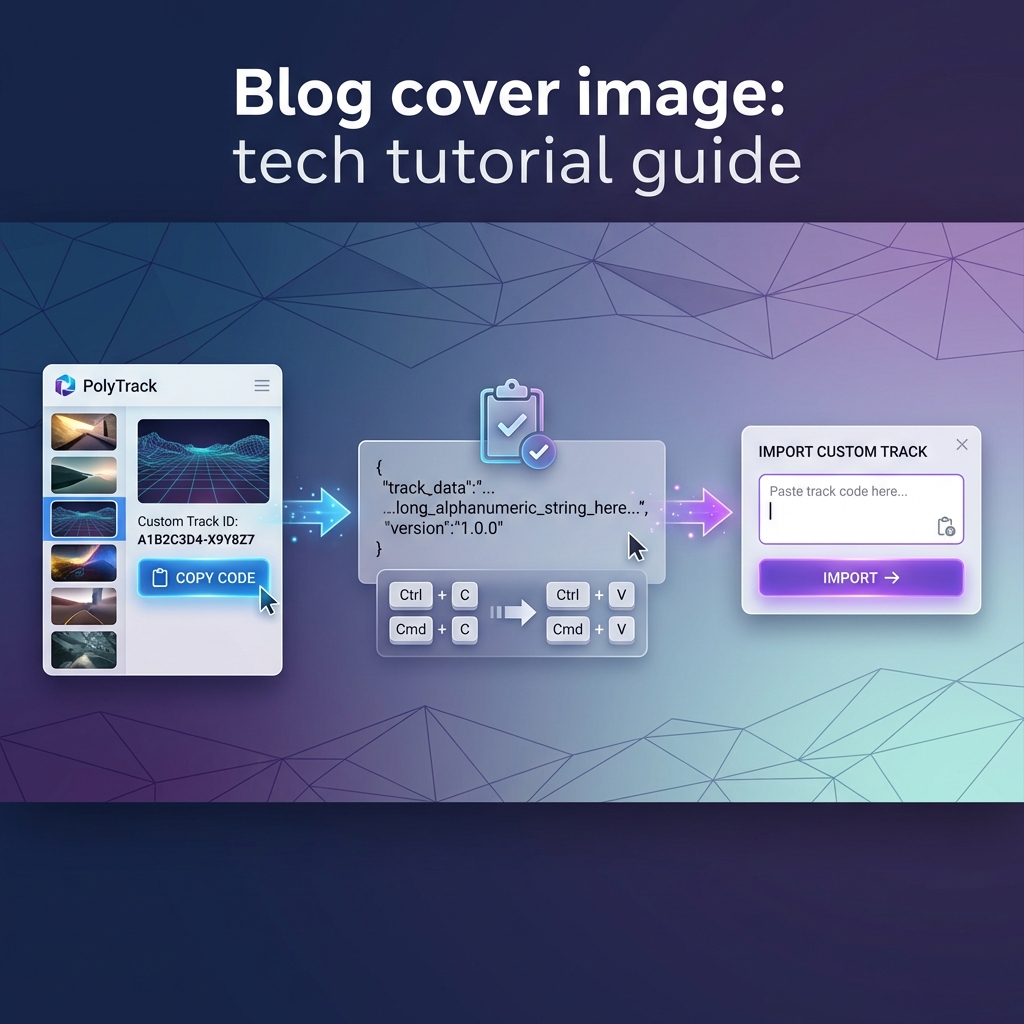
| Export Code | Menu → Export |
Pro Tips for the Editor
F3 Camera Calibration: Press F3 to enter camera calibration mode where you can set the overhead angle, pan speed, and zoom sensitivity. A 45-degree angle at slow pan speed is the community standard for precise block placement.
Grid Density: Adjusting the grid snap density allows you to place blocks at non-standard intervals. A density of 0.5 enables half-grid placement, which is essential for smooth transitions and slope-matching between different road angles.
Replay Controls
After completing a track, the replay system lets you study your run in detail.
| Action | Input |
|---|---|
| Play / Pause | Space |
| Speed Up | Right Arrow (or +) |
| Slow Down | Left Arrow (or -) |
| Frame Step Forward | . (period) |
| Frame Step Back | , (comma) |
| Toggle Free Camera | C |
| Reset Replay | R |
How to Use Replays Effectively:
- Identify the section where you lose the most time compared to the ghost
- Scrub to that section using Left/Right arrows
- Switch to free camera (C) and orbit around the turn
- Step through frame by frame (. key) to see the exact entry angle and speed of the faster line
- Note the specific point where lines diverge — that is your improvement target
Multiplayer Controls
In multiplayer mode, additional social controls are available:
| Action | Input |
|---|---|
| Open Chat | T or Enter |
| Send Message | Enter (while chat is open) |
| Close Chat | Escape |
| Toggle Nameplates | N |
| Toggle Other Players Visible | H |
Multiplayer Tip: Toggling other players invisible (H) during a focused speed session removes visual distraction while keeping you in the multiplayer room for competition and comparison.
WASD vs. Arrow Keys: Which Is Better?
This is the most common control debate in the PolyTrack community. The honest answer: either works, but pick one and commit.
| Factor | WASD | Arrow Keys |
|---|---|---|
| Left Hand Position | Natural resting position | Must move hand across keyboard |
| Space Bar Access | Thumb is already there | Thumb must reach slightly |
| Editor Shortcuts | Ctrl+C/V/Z with same hand | Requires hand repositioning |
| Personal Preference | FPS/PC gamers prefer this | Console/traditional racing gamers prefer this |
The competitive community is roughly split 60/40 in favor of WASD, primarily because of the ergonomic advantage for drift entry (Space is directly below the left hand).
The important thing: Do not switch back and forth. Your muscle memory is specific to your key layout. Pick one, practice for a week, and it will become instinctive.
Hidden / Advanced Inputs
These are less commonly known controls:
| Action | Input |
|---|---|
| Toggle FPS Counter | F1 (in some builds) |
| Toggle Debug Overlay | F2 |
| Camera Settings | F3 |
| Screenshot | F12 (browser-dependent) |
| Fullscreen | F11 (browser-dependent) |
Quick Reference Summary
Must-know for racing: WASD + Space (drift) + R (reset)
Must-know for editor: Q/E (rotate) + Ctrl+C/V (copy-paste) + Enter (test) + F3 (camera)
Must-know for improvement: Replay frame step (. key) + Free camera (C)
Browse our track library to find tracks to practice these controls on, starting with our Easy difficulty tracks if you are just getting started.